3 months ago
💻 ProgrammingHow to deploy Rails/Rack app on Hetzner without Kamal/Docker with HTTPS
1. Starting a server
We will use ssh key for ssh login for our server. So first, we need to create a one:
cd ~/.ssh && ssh-keygen -f hetzner && cat hetzner.pub
Copy the contents of hetzner.pub to clipboard.
Go to console.hetzner.com, create a new project or use the Default. Select the project and go to Security → Add SSH key. Paste the content there. Next go to
Go to console.hetzner.com, create a new project or use the Default. Select the project and go to Security → Add SSH key. Paste the content there. Next go to
Servers and start a new server. Here's an example of server configuration:
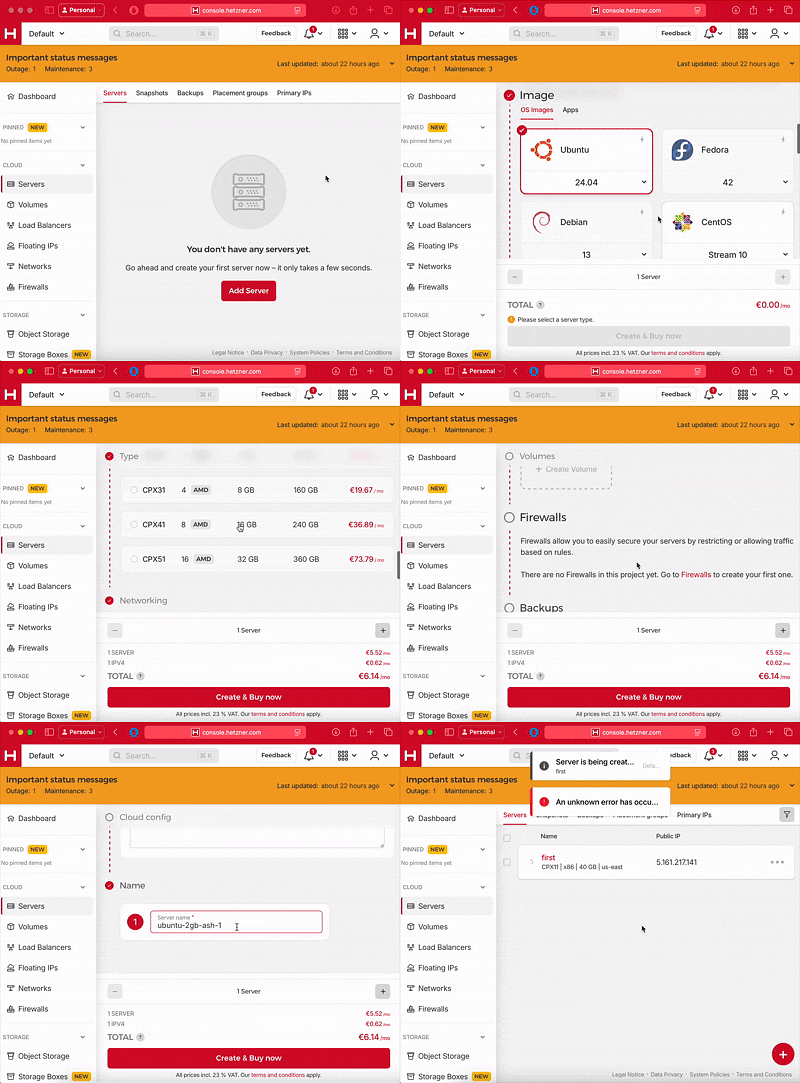
starting server
ip=5.161.217.141
2. Point DNS to the server
Consider, that it takes time for DNS updates to propagate through the internet.
We need to wait until
host sample.com
returns a correct IP address. While waiting we can do other steps.
4. Create deployer user and copy .ssh folder
Run locally:
ssh-add ~/.ssh/hetzner
ssh root@$ip
Now on the machine from the root user run
adduser --disabled-password deployer < /dev/null
cp -r ~/.ssh /home/deployer/
cd /home/deployer/
chown -R deployer:deployer .ssh
This will allow us to login without password to deployer user
5. Make deployer an admin
From the root run
sudo usermod -aG sudo deployer
and add at the bottom of the file
deployer ALL=(ALL) NOPASSWD:ALL
This gives sudo permissions to deployer without asking for password. Now relogin as a deployer:
ssh deployer@$ip
6. Install Ruby
First install rbenv:
git clone https://github.com/rbenv/rbenv.git ~/.rbenv
echo 'export PATH="$HOME/.rbenv/bin:$PATH"' >> ~/.bashrc
echo 'eval "$(rbenv init -)"' >> ~/.bashrc
source ~/.bashrc
rbenv -v
Then ruby-build
git clone https://github.com/rbenv/ruby-build.git ~/.rbenv/plugins/ruby-build
And install ruby version that you want
sudo apt install -y git curl build-essential libssl-dev libreadline-dev zlib1g-dev \
  libsqlite3-dev libyaml-dev libffi-dev libgdbm-dev libncurses5-dev \
  libncursesw5-dev libdb-dev libgmp-dev
rbenv install 3.4.5
ruby -v
7. Creating a sample app
First, let's create a sample Rails app:
rails new sample --database=postgresql
cd sample
git init
git add .
git commit -m 'initial'
And let it be a todo list app, so let's add a Task scaffold:
rails g scaffold tasks title
rails db:create db:migrate
git add .
git commit -m 'task scaffold'
Now let's add a psql password for production
EDITOR=vim rails credentials:edit --environment production
and add this password under, e.g.
db_password: your_secure_password
and in database.yml replace password and user name to postgres:
production:
  primary: &primary_production
    <<: *default
    username: postgres
    password: <%= Rails.application.credentials.dig(:db_password) %>
Commit and push the changes
git add .
git commit -m 'db password added'
We will use Github for storing our code and pulling from remote repository to the server, so create a repository there and then push the code to it
git push origin HEAD
Go to the server and pull the repo, notice that we use -A flag to pass github ssh agent:
ssh -A deployer@$ip
Clone the repo URL into home directory
git clone $ssh_repo_url
And move this directory on /var/www (we use sudo as /var/www doesn't belong to deployer)
sudo mv sample /var/www
8. Setting up Postgres
Now upload the production key via scp from the local machine:
scp config/credentials/production.key deployer@$ip:/var/www/sample/config/credentials/
On the server run:
sudo apt update && sudo apt install -y postgresql postgresql-contrib
Create a password postgres user:
sudo -u postgres psql -c "ALTER USER postgres WITH PASSWORD 'your_secure_password';"
And change authentication method to scram-sha-256 by replacing all md5 to scram-sha-256 in this file:
sudo vim /etc/postgresql/$(ls /etc/postgresql)/main/pg_hba.conf
Restart postgres
sudo systemctl restart postgresql
Install gems and if needed the ruby version for the project
cd /var/www/sample
rbenv install $(cat .ruby-version)
bundle install
RAILS_ENV=production rails db:create db:migrate
9. Service configuration
The app will be running at 127.0.0.1:3030 and won't be accessible from the internet, but nginx will redirect all the traffic as reverse proxy.
in config/puma.rb replace
# Specifies the port that Puma will listen on to receive requests; default is 3000.
port ENV.fetch("PORT") { 3000 }
with
bind "tcp://127.0.0.1:3030"
Push the changes and pull them on the server.
Next, create a service in
sudo vim /etc/systemd/system/sample.service
with this content (change it to your own liking):
[Unit]
Description=My Sample Rails Application
After=network.target

[Service]
Type=simple
User=deployer
WorkingDirectory=/var/www/sample
Environment=RAILS_ENV=production
Environment=PATH=/home/deployer/.rbenv/shims:/home/deployer/.rbenv/bin:/usr/local/bin:/usr/bin:/bin
Environment=RBENV_ROOT=/home/deployer/.rbenv
ExecStart=/bin/bash -lc 'exec /home/deployer/.rbenv/shims/bundle exec puma -C config/puma.rb'
Restart=always
StandardOutput=append:/var/log/sample.log
StandardError=append:/var/log/sample.error.log

[Install]
WantedBy=multi-user.target
Next:
sudo systemctl enable sample

sudo systemctl start sample
From now on we can check if curl returns html:
curl 127.0.0.1:3030
10. Nginx configuration
install nginx :
sudo apt install nginx
I'll use sample.karganyan.dev as a host, use your own.
sudo vim /etc/nginx/sites-available/sample.karganyan.dev
Insert this to the file:
server {
  server_name sample.karganyan.dev;
  listen 80;
  listen [::]:80;
  root /var/www/sample/public;
  access_log /var/log/nginx/sample.access.log;
  error_log  /var/log/nginx/sample.error.log;
  location / {
    proxy_pass http://127.0.0.1:3030;
    proxy_set_header Host $host;
    proxy_set_header X-Forwarded-For $proxy_add_x_forwarded_for;
    proxy_set_header X-Forwarded-Proto $scheme;
    proxy_set_header X-Forwarded-Ssl on; # needed if SSL is added later
    proxy_redirect off;
  }
  location ~ ^/(assets|packs|uploads)/ {
    expires max;
    add_header Cache-Control public;
  }
  error_page 500 502 503 504 /500.html;
  client_max_body_size 50M;
  keepalive_timeout 10;

}
Install certbot
sudo apt install certbot python3-certbot-nginx -y
Delete default nginx file
sudo rm /etc/nginx/sites-enabled/default
Replace with your host
sudo certbot --nginx -d sample.karganyan.dev
Restart nginx
sudo nginx -t

sudo systemctl reload nginx
Go to your host and the site should work now.
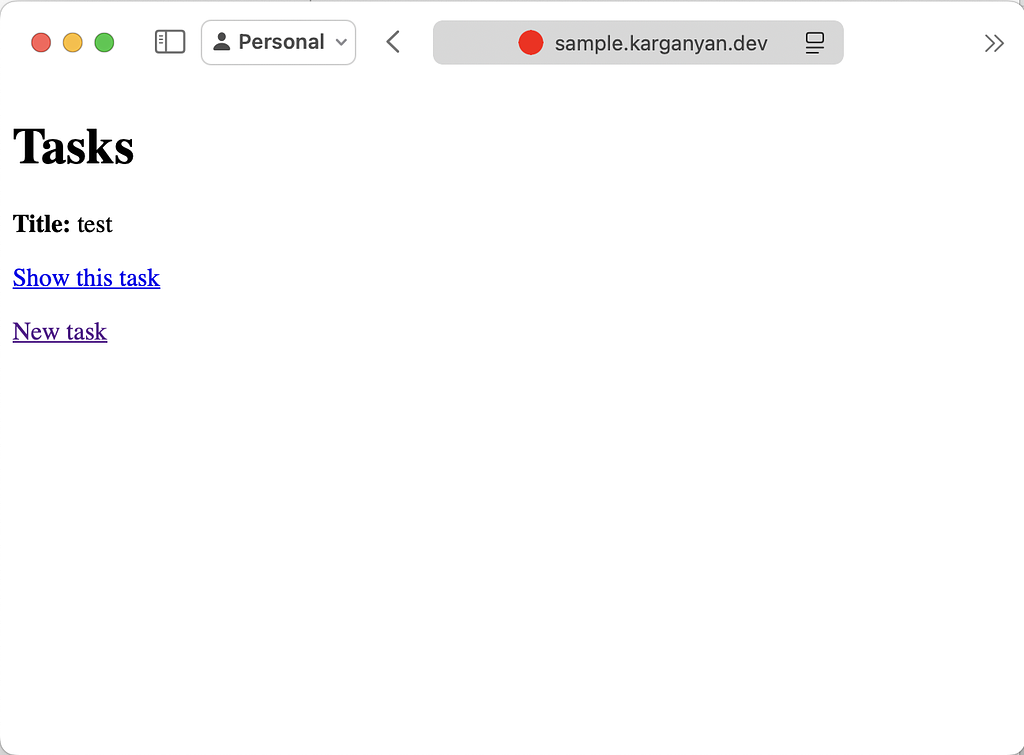
sample.karganyan.dev/tasks
11. Redeployment
to redeploy use
git push && ssh -A deployer$ip "cd /var/www/sample && git pull && PATH=/home/deployer/.rbenv/shims:/home/deployer/.rbenv/bin:/usr/local/bin:/usr/bin:/bin && RAILS_ENV=production bin/rails db:migrate && sudo systemctl restart sample"